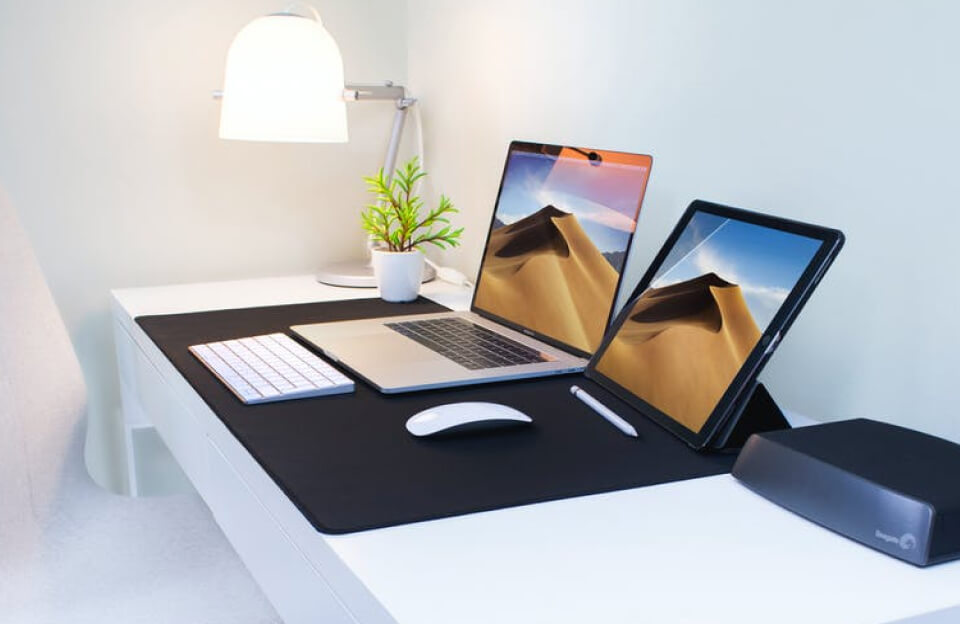
In today’s interconnected tech world, many users find themselves needing both macOS and Windows. Developers may require macOS for iOS builds and Windows for .NET applications. Designers may prefer macOS tools, while business software or games may only run on Windows. Fortunately, it is possible to run macOS and Windows 10 on the same computer—and there are several ways to do it.
This article explores the most common methods, their advantages, limitations, and which option may be best for your needs.
Why Run macOS and Windows Together?
Running both operating systems on one machine offers several benefits:
- Cost efficiency: No need to buy two separate computers
- Workflow flexibility: Access OS-specific software from one device
- Cross-platform testing: Ideal for developers and IT professionals
- Convenience: Switch environments without changing hardware
Depending on your hardware and performance requirements, you can choose between dual-booting, virtualization, or advanced hybrid setups.
Method 1: Dual Booting macOS and Windows 10
What Is Dual Booting?
Dual booting allows you to install both operating systems on the same computer but run only one at a time. When the system starts, you choose which OS to load.
Common Tools
- Boot Camp (Intel-based Macs only)
- Clover / OpenCore (for custom setups or Hackintosh systems)
Pros
- Full hardware performance for each OS
- No virtualization overhead
- Best for gaming or resource-intensive tasks
Cons
- Requires rebooting to switch OS
- Disk partitioning can be complex
- Boot Camp is not supported on Apple Silicon Macs
Best for: Users who need maximum performance from both operating systems and don’t mind restarting.
Method 2: Virtualization (Running One OS Inside the Other)
Virtualization allows one operating system to run inside another as a virtual machine (VM).
Popular Virtualization Software
- Parallels Desktop
- VMware Fusion
- VirtualBox
How It Works
You run macOS as your main OS and launch Windows 10 in a window, or vice versa. Both systems can run simultaneously.
Pros
- No rebooting required
- Easy file sharing between OSs
- Fast setup and user-friendly
Cons
- Reduced performance compared to dual boot
- Requires more RAM and CPU resources
- Some hardware-intensive apps may struggle
Best for: Office work, development, testing, and general productivity.
Method 3: Apple Silicon Macs (M1, M2, M3)
Apple’s transition to ARM-based processors changed how Windows runs on Macs.
What’s Different?
- Boot Camp is no longer available
- Windows runs via ARM-based virtualization
- Parallels Desktop supports Windows 10/11 ARM
Pros
- Excellent performance and battery life
- Seamless integration with macOS
- Very stable virtualization experience
Cons
- Windows ARM has limited driver and app compatibility
- Some x86 applications require emulation
Best for: Modern Mac users who need Windows for productivity rather than gaming or legacy software.
Method 4: Hackintosh (Advanced Users Only)
A Hackintosh is a non-Apple PC configured to run macOS alongside Windows.
Pros
- Customizable hardware
- Can dual boot macOS and Windows
- Potentially more powerful than a Mac
Cons
- Complex setup and maintenance
- Not officially supported by Apple
- macOS updates may break the system
Best for: Enthusiasts, developers, and advanced users who enjoy experimentation.
Hardware Requirements to Consider
Regardless of the method you choose, your system should ideally have:
- At least 16 GB RAM (8 GB minimum for virtualization)
- SSD storage (512 GB or more recommended)
- Multi-core CPU
- Good GPU support (especially for design or gaming)
The smoother your experience will be, the more resources you allocate.
Which Option Is Right for You?
| Use Case | Recommended Method |
|---|---|
| Gaming | Dual Boot |
| Software Development | Virtualization |
| Office & Productivity | Virtualization |
| Maximum Performance | Dual Boot |
| Apple Silicon Macs | Virtualization |
| Custom PC Enthusiasts | Hackintosh |
Final Thoughts
Running macOS and Windows 10 on the same computer is no longer a niche setup—it’s a practical solution for professionals, students, and power users alike. Whether you prioritize performance, convenience, or flexibility, there’s a method that fits your needs.
As hardware and virtualization technology continue to improve, switching between operating systems is becoming smoother and more accessible than ever. With the right setup, you can enjoy the best of both worlds—without compromise.